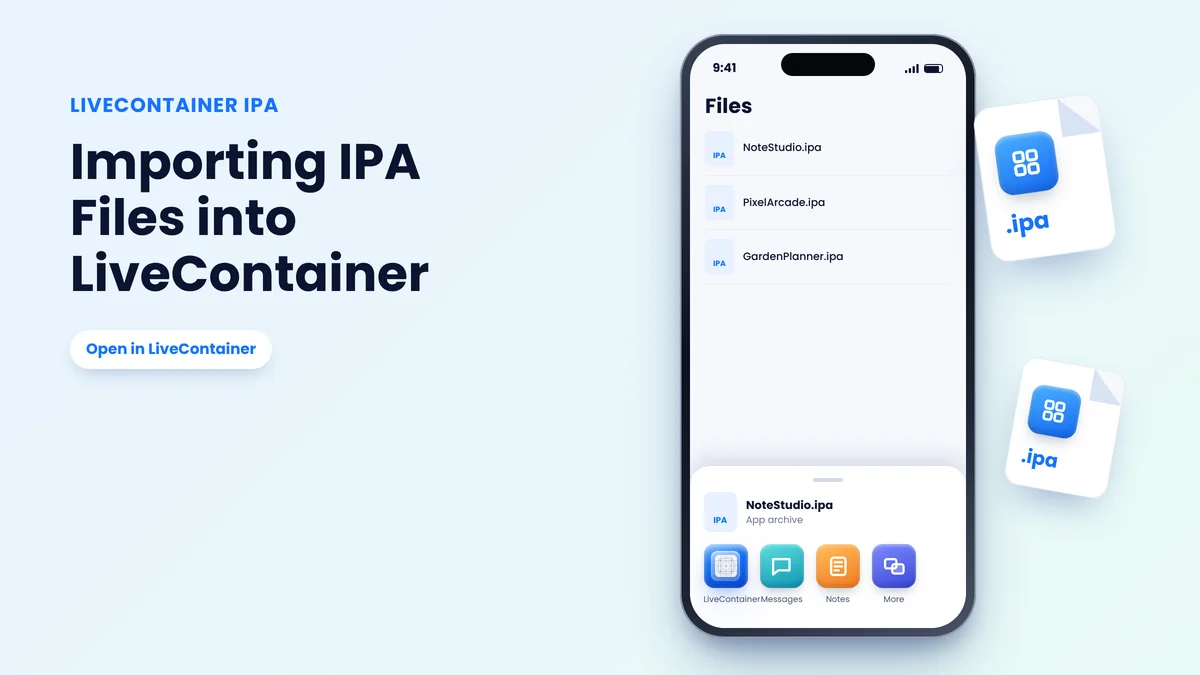
LiveContainer IPA handling is the core of everyday use. Every guest app starts as an IPA file, and the way you import, update and organise those files decides how smooth LiveContainer feels once the initial setup is done.
The sections below explain what makes an IPA suitable, the two ways to bring one into LiveContainer, how updates work and which apps are unlikely to run correctly because of known limitations.
What an IPA File Is
An IPA is the package format for iOS apps. It contains the app bundle with its executable, resources and metadata. LiveContainer reads this package, stores the app inside its own data area and loads the executable when you choose to launch it.
App Store apps are encrypted for the device they were downloaded to. LiveContainer needs a decrypted IPA, which is why files from developers, open-source projects or your own builds are the most dependable choice.
- Use IPA files you have the right to use.
- Prefer complete downloads from the original source.
- Avoid renamed archives or partly downloaded files.
Importing an IPA into LiveContainer
The plus icon in the Apps tab opens a file picker. Choose the IPA from the Files app, and LiveContainer prepares the guest app. Without JIT, this step also signs the app with LiveContainer's certificate, so the signing setup should already be complete.
Using the Share Sheet
LiveContainer supports opening files and links through the iOS share sheet. Sharing an IPA to LiveContainer from Safari, Files or another app sends it straight to the launcher, which is convenient when downloads land in different places.
Opening URLs in Guest Apps
The same share sheet support works for links. When you share a URL to LiveContainer, it asks which guest app should open it, and the Apps tab also lets you enter a URL directly for the same purpose.
Updating Guest Apps
A new version arrives as a new IPA. Importing it over an existing guest app replaces the app bundle while the data container stays in place, which keeps settings and sign-ins in most cases. Back up anything important before a large update, because some apps change their data format between versions.
For side-by-side testing, keep the older version as a separate guest app with its own container instead of replacing it. That way the current and previous releases can be compared without either one affecting the other.
Organising Guest Apps and Containers
Each guest app can have several data containers. A container holds documents, preferences and keychain data, so different accounts or configurations can live side by side for the same app.
| Goal | Suggested approach |
|---|---|
| Two accounts in one app | One app, two data containers |
| Compare app versions | Two guest apps, separate containers |
| Quick access | Add a Home Screen shortcut |
| Less clutter | Use the app hiding option |
LiveContainer assigns keychain access groups to containers of the same app from a pool of 128, which is what makes separate logins possible. Containers are still not sandboxed from each other, so they organise data rather than secure it.
IPA Files That May Not Work
Some apps rely on features that LiveContainer cannot pass through. Knowing these limits in advance saves time spent importing an app that cannot run properly inside the launcher.
- Apps that depend on app extensions such as widgets or keyboards.
- Apps that need remote push notifications to function.
- Apps that require special entitlements, which are not applied to the host.
- Apps that query custom URL schemes for other installed apps.
The project keeps a compatibility list on GitHub where users report which apps work. Checking it before importing a large or complex app is a quick way to set expectations.
Per-App Fixes Worth Knowing
LiveContainer includes options that help specific kinds of apps. Fix File Picker helps apps that open documents through the system picker, and Fix Local Notifications helps apps that schedule reminders on the device.
These options are set per guest app, so turning one on for a single app does not affect the rest of your collection. Try them when an app opens but a particular action fails.
Keeping Your IPA Library Organised
A growing collection of guest apps is easier to manage when the IPA files themselves are stored sensibly. Keeping the original files in one folder in the Files app means you can re-import an app quickly after a reinstall or a failed update.
Naming files with the app name and version also helps when testing several releases side by side. It removes guesswork when you need to go back to a version that worked well.
- Store original IPA files in a single, clearly named folder.
- Include the version number in each file name.
- Delete outdated files you no longer plan to test.
Privacy Considerations for Guest Apps
Guest apps share LiveContainer's permissions, which are applied globally. Granting camera or location access for one guest app effectively grants it to the host, so other guest apps may be able to use it too.
Data containers are not sandboxed from each other either. Treat every imported IPA as something that can see other guest app data, and only import apps from sources you trust.
Removing Guest Apps Cleanly
Deleting a guest app from LiveContainer frees its storage, but check whether you also want to remove its data containers. Keeping a container can be useful if you plan to import the app again later with the same settings.
Frequently Asked Questions
Can I import App Store apps directly?
App Store downloads are encrypted for your device, so LiveContainer needs a decrypted IPA instead.
Will updating a guest app delete its data?
Importing a new version normally keeps the existing data container, but backing up important data first is still wise.
Is there a limit on how many IPA files I can add?
LiveContainer uses one App ID for itself, so the free-account app limit does not apply to guest apps. Storage space is the practical limit.
Conclusion
LiveContainer IPA management works best with clean, decrypted files from trusted sources, a working signing setup and a clear plan for containers.
Importing through the plus icon or the share sheet, updating carefully and checking the compatibility list before adding complex apps keeps your guest app collection tidy and dependable.